
This feature is only available in the Pro version of Independent Analytics.
Watch the video tutorial here to learn how to use the Campaigns report and the Campaign Builder.
Using the UTM parameters, you can create new links that will be tracked in the Campaigns menu.
While you can type out campaign URLs manually, it’s easy to make a mistake, and if you misspell a parameter name, it won’t be tracked.
For this reason, it’s easier and more reliable to use the Campaign Builder.
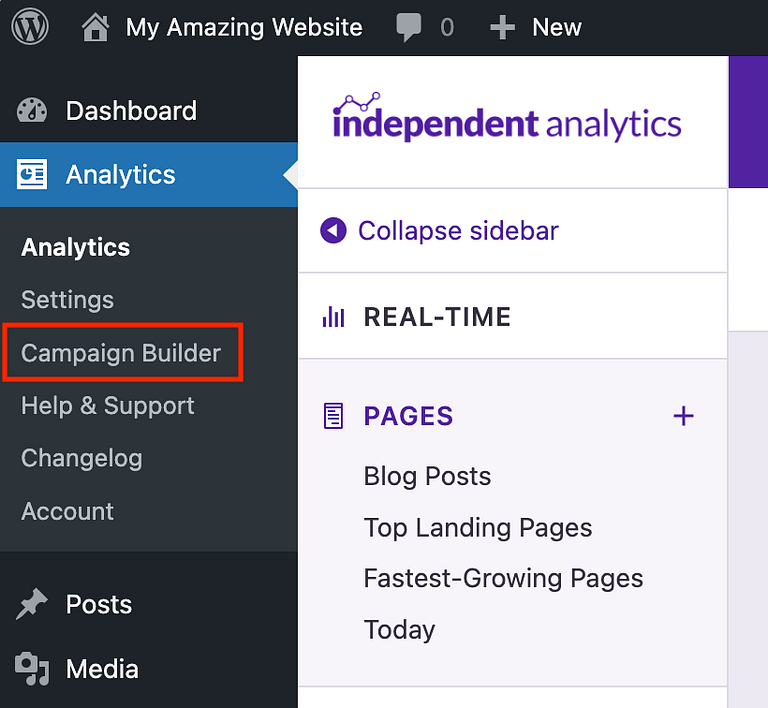
You can access the Campaign Builder via its link under the Analytics menu item in your WP admin sidebar.
You don’t have to create your campaign URLs with the Campaign Builder for them to be tracked. Campaign URLs that are created dynamically by email and ad platforms will be tracked too.
How to use the Campaign Builder
Here’s what you’ll see when you open the Campaign Builder for the first time:
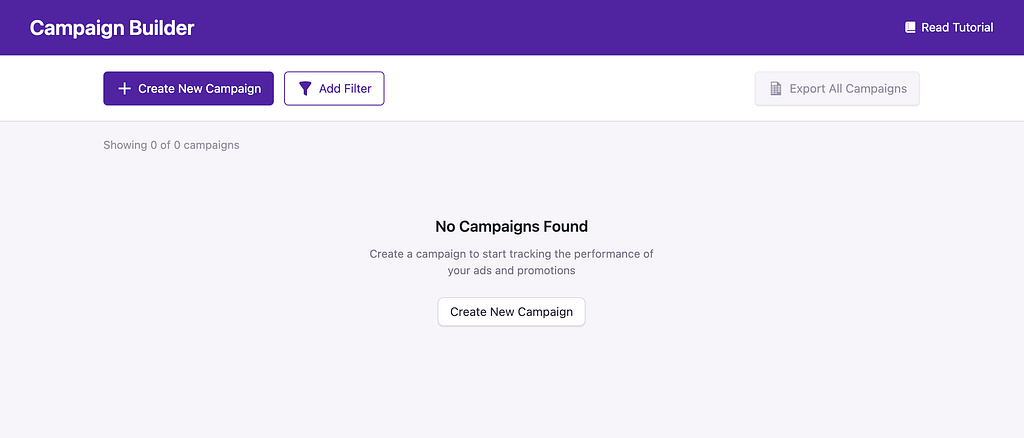
To create your first campaign, you can click the Create New Campaign button in the middle of the page or the purple button in the toolbar. This will open the form to create a new campaign.
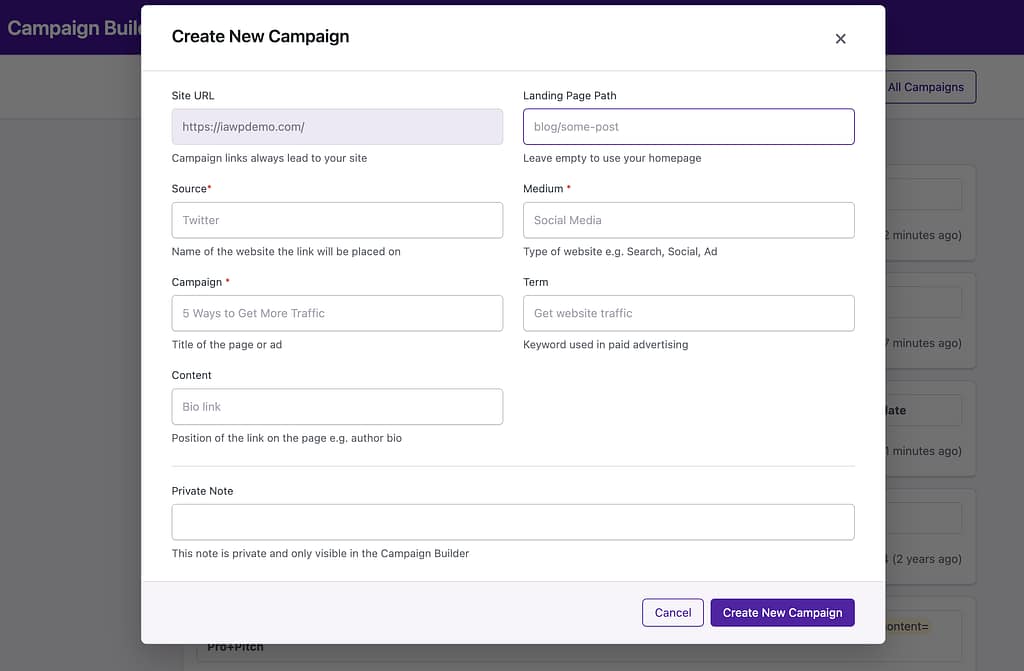
You can find a detailed description of each UTM parameter here.
The campaign link is automatically set to point to your homepage. If you’d like to link to another page on your site, you can enter that path into the Landing Page Path field.
Next, you are required to enter the Source, Medium, and Campaign fields to create a valid campaign link. Optionally, you can fill out the Term and Content fields, but they are not required.
Lastly, there is a Private Note field you can enter. This note is only shown in the Campaign Builder menu and exists to help you keep your campaigns organized.
Once you’re ready, click the Create New Campaign button, and you’ll see your new campaign show up immediately in the list of created campaigns below.
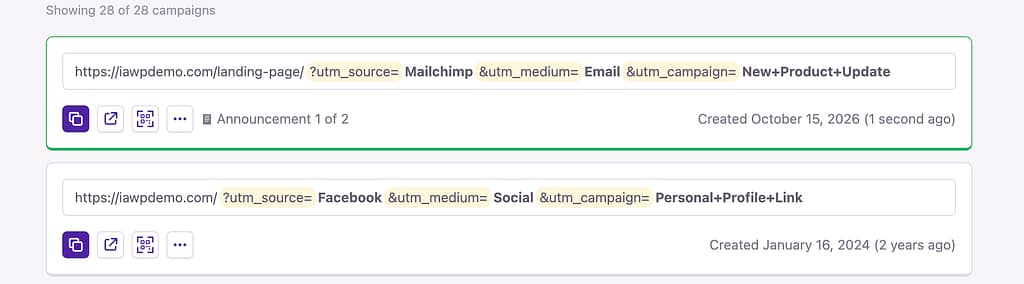
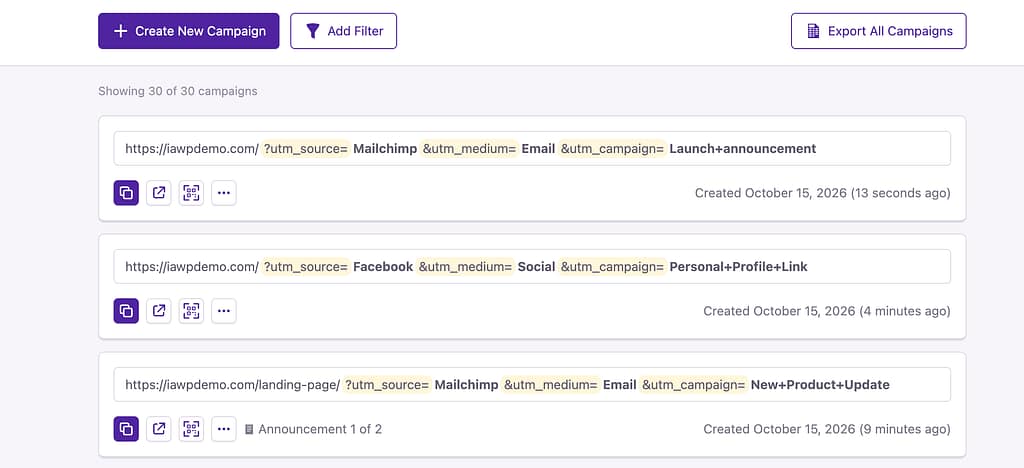
Over time, you’ll create many campaigns, and you can browse them easily here.
Filtering your campaigns
Once you have a lot of campaigns, you may want to find certain ones to replicate or reuse. To do that, you can click on the Add Filter button in the toolbar.

Right away, you’ll see that it finds some suggestions for you, based on your existing entries.

In the screenshot above, you can see that there are 12 campaigns that have all used “Email” as their medium, so that’s why it’s being suggested first.
You can click on any of the suggestions to immediately apply the filter, and only matching campaigns will remain in the list.

Alternatively, you can use the search bar to search for a term yourself. If you do this, you also have the option to filter by any field. For instance, instead of filtering by campaigns with a medium set to “Email,” you can search for campaigns that use the term “Email” in any of their fields.

How to generate QR codes
Every campaign link has the option to create a unique QR code.
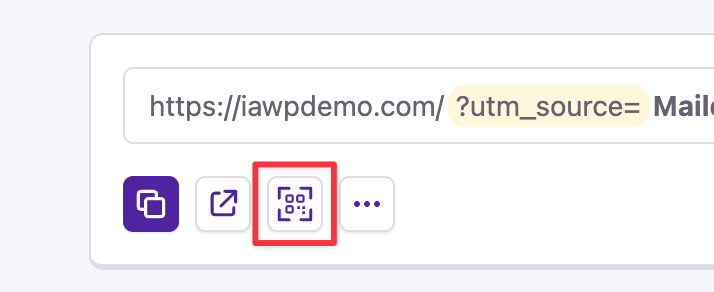
You can create a QR code by clicking on the QR code button under the campaign URL.
This will open a modal window where you can customize the size and style of the QR code.
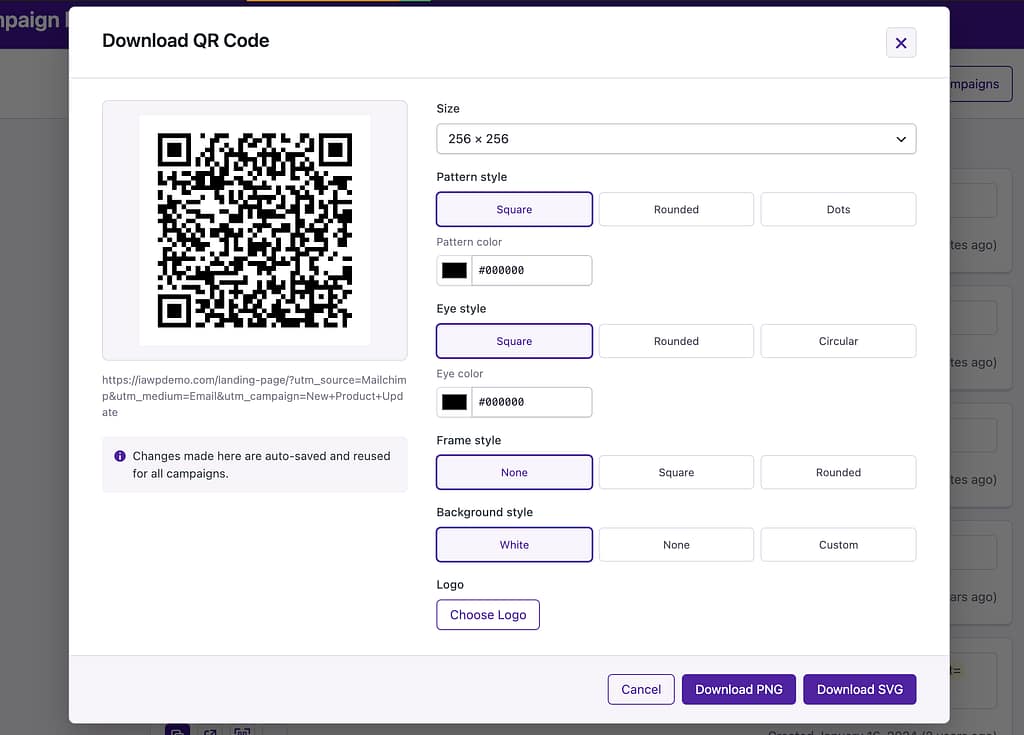
When you’re happy with your changes, you can download the QR code as either a PNG or an SVG image.
The changes that you make are silently saved, so the next time you open the QR code builder, you’ll see the same colors and settings applied.
How to export your links
You may want to export all your campaign links for use in another tool. This can be done easily by clicking the Export All Campaigns button in the toolbar.
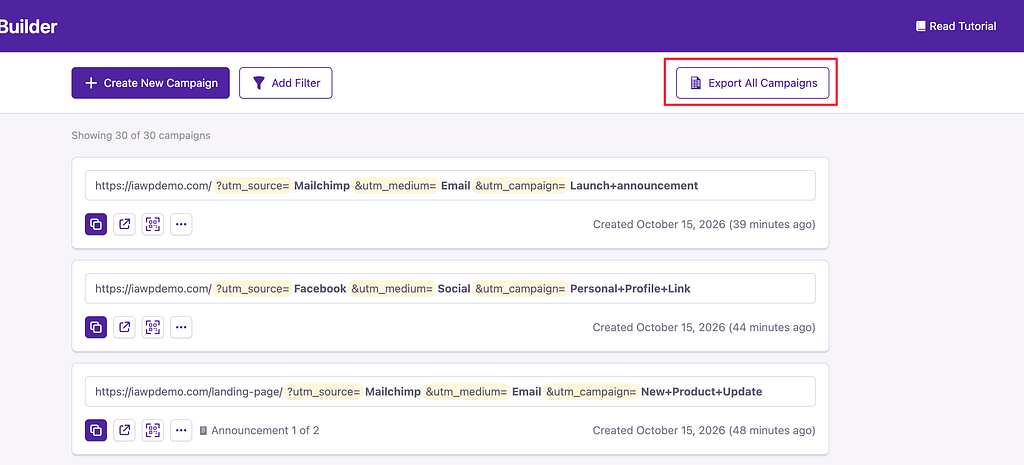
This will immediately generate and download a nicely formatted CSV containing each link in a row with each UTM parameter in its own column.
If you apply a filter first, the export button will update to only export links matching the applied filter conditions.
How to edit a link
If you make a mistake, it’s easy to reopen the builder and edit a campaign URL.
To do so, click on the More Options button in the campaign, and then select the Edit option.
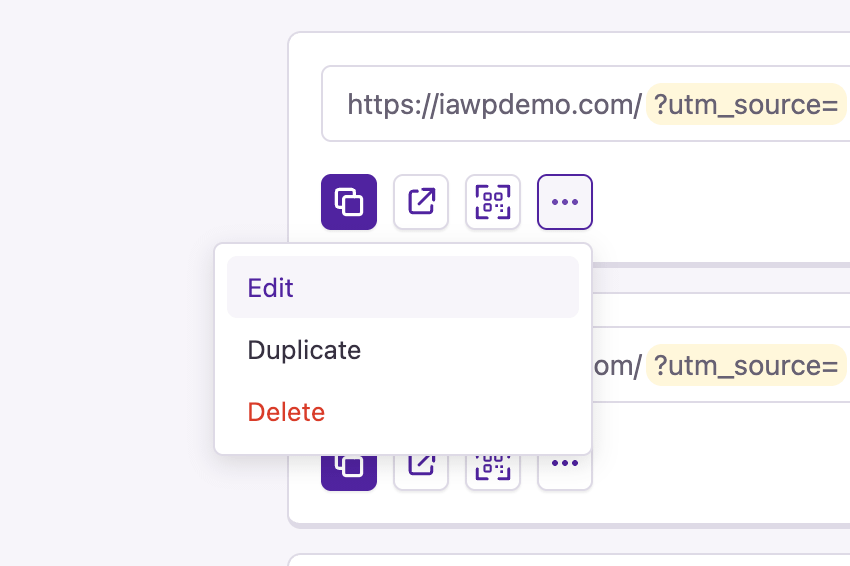
This will reopen the builder so you can make your changes and save them.
How to duplicate a link
You may want to create a variation of an existing campaign. For instance, you’re happy with all the fields except for the Content field.
The best way to do this is to click on the More Options button in the campaign and then choose the Duplicate option.
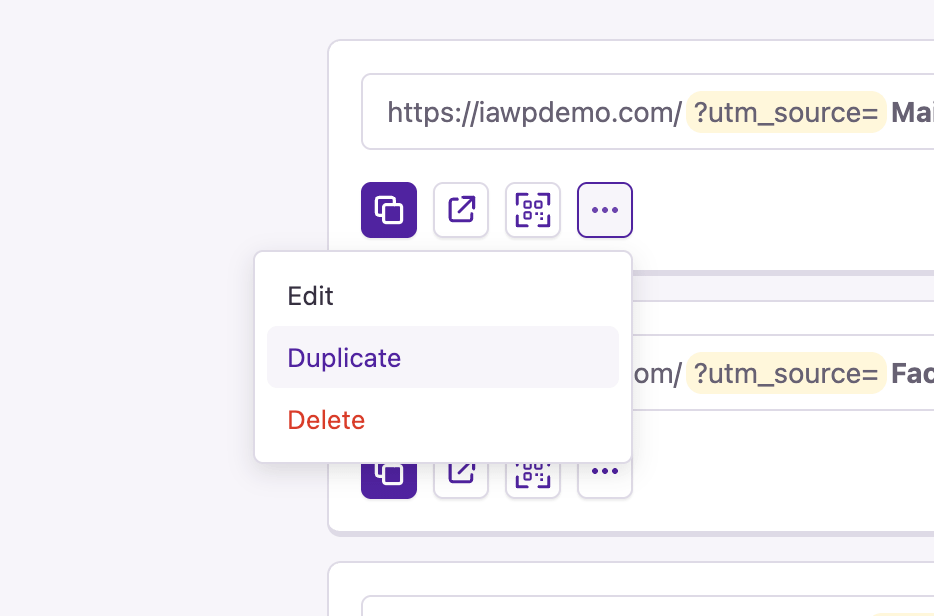
This will immediately create a second copy of a campaign, which you can then edit.
How to delete a link
If you’d like to delete a campaign link, perhaps one you created for testing, you can do so by clicking the More Options button and then selecting the Delete option.
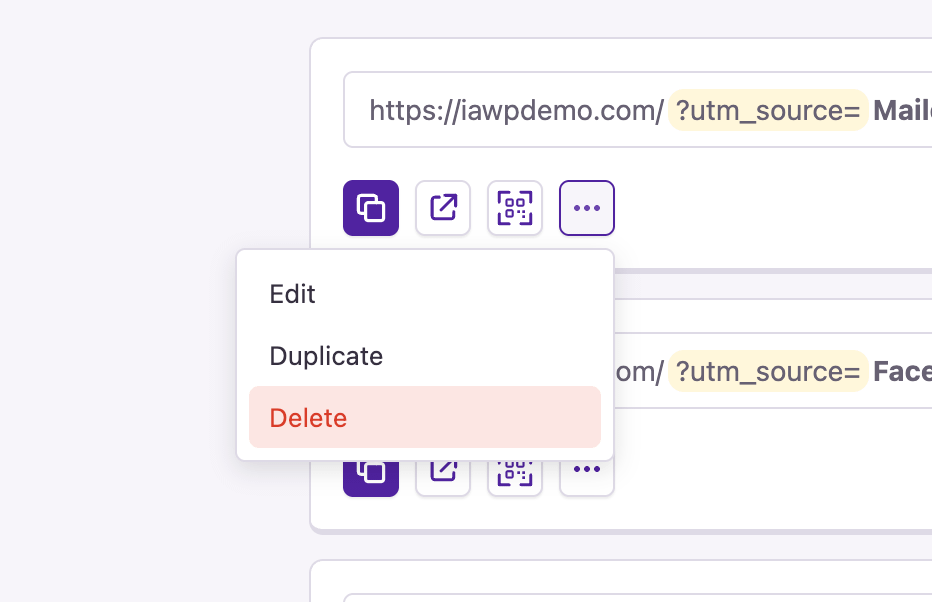
The text will update to say, “Confirm Delete.” Click it once more, and the campaign link will be permanently deleted.
Please note that this does not affect any recorded data in the analytics; it only removes the link from the Campaign Builder menu.
Tip: keep your fields consistent
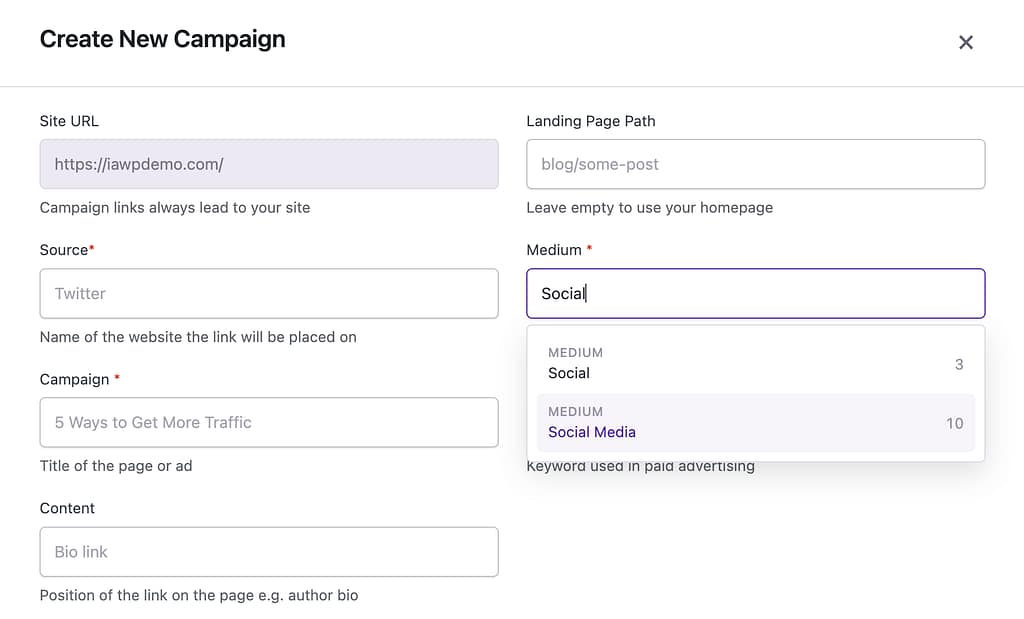
If you create a campaign link for Facebook and you enter “Social” into the Medium field, and then you create another campaign link for Facebook but enter “Social Media” into the Medium field, this will make it harder to analyze your links in the Campaigns report because they will get grouped separately when grouping by Medium.
That’s why the builder will auto-suggest your most used terms in each field. This makes it easier to stay consistent and avoid spelling mistakes and other variations that will make your data harder to analyze in the future.
For help with Pro features or pre-sale questions, please reach out via our contact page.
