
Terminology: Your production website is the one your visitors visit. Your staging site is the private copy where you make changes. Pushing your staging site to production means you are replacing your production website with your staging site.
A major difference between Independent Analytics and Google Analytics is that your data is stored in your database, not an external one.
This is great for privacy, but it does give you the added responsibility of safeguarding your data.
If you are not backing up your site regularly, please install a backup plugin or switch to a web host with automated backups immediately!
This will ensure you always have a backup of your analytics data, not to mention all your posts, pages, etc.
Since your analytics data is stored in your WordPress database, it’s easy to migrate and import/export using existing tools.
Where the analytics are stored
Independent Analytics adds numerous tables to your database, all beginning with your database prefix followed by “independent_analytics.”
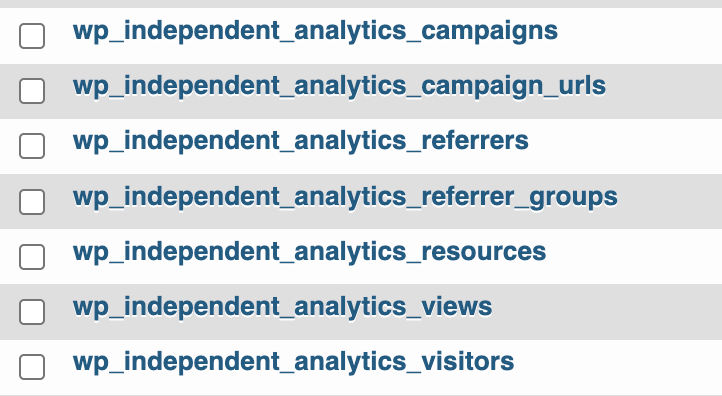
Since your analytics data is stored in the WordPress database, it will be transferred by any plugin that migrates data between local/staging/production sites. This makes things easy except for when transferring from a staging site back to production.
Make sure the plugin versions match
Before you push from your staging site to production, make sure that both sites are running the same version of Independent Analytics. If one is behind, update it right away.
Pushing from staging to production when the sites use different versions of IA can cause errors that pause tracking and require manual intervention.
Exclude the analytics tables when pushing
The best method is to exclude the analytics tables when pushing from staging to production. This way, you can push all of the files and the entire database, except for the analytics tables. This leaves your analytics untouched on the live website.
The following plugins include the option to choose which database tables you want to migrate:
If you don’t have a way to create a staging site already, we recommend Blogvault and WP Stagecoach, which can create a staging site and have controls for selecting DB tables to migrate.
What if I can’t exclude tables?
Let’s say your host has a built-in option to create staging sites and push them to production, but they don’t have any options to exclude database tables.
There is a simple workaround you can use in this scenario.
First, make sure Independent Analytics is running the same version on both your staging and production sites. Then, use one of the plugins listed above to push only your analytics database tables from the production site to the staging site.
This way, you can check your analytics on the staging site and make sure they transferred successfully, then you can use your host’s option to push the entire site to production. You’ll have all your changes transferred to the live site while retaining all of your data this way.
We use Rocket.net, which can quickly create staging sites, but pushes the entire site back to production. When we are ready to publish the changes we made on our staging site, we use the WP DB Migrate Pro plugin to push the analytics tables from our live site to the staging site, and then use the option in Rocket.net to push the entire staging site live.
What if I don’t want to use one of those plugins?
Using one of the recommended plugins to transfer the analytics tables is the easiest solution, but it can be done manually too.
How to manually export your analytics data
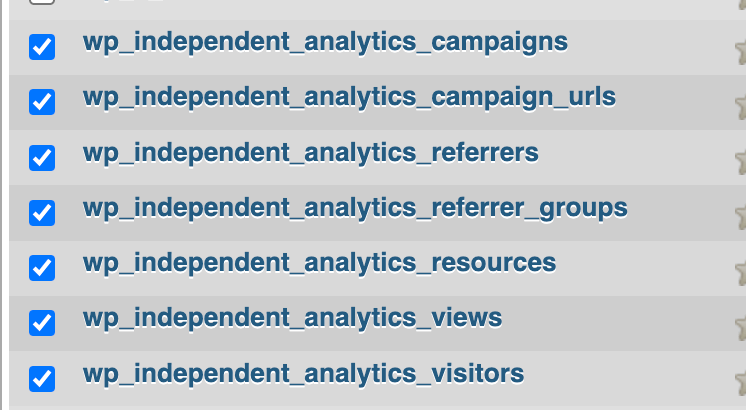
To manually transfer your analytics tables, start by logging into your hosting dashboard and finding the link to phpMyAdmin. Once inside phpMyAdmin, click on your site’s database in the left sidebar. Then, locate the Independent Analytics tables and select them all.
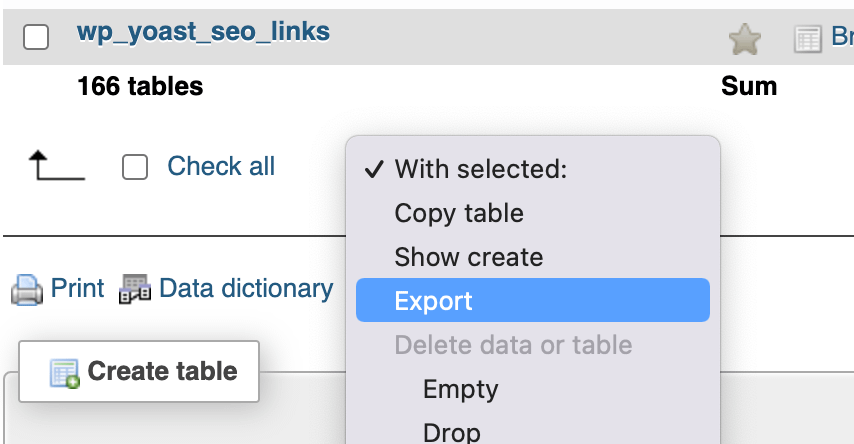
Next, scroll to the bottom of the page and use the With selected dropdown to choose the Export option.
This will immediately redirect you to the Export menu, where you can click the Go button to export the selected tables.
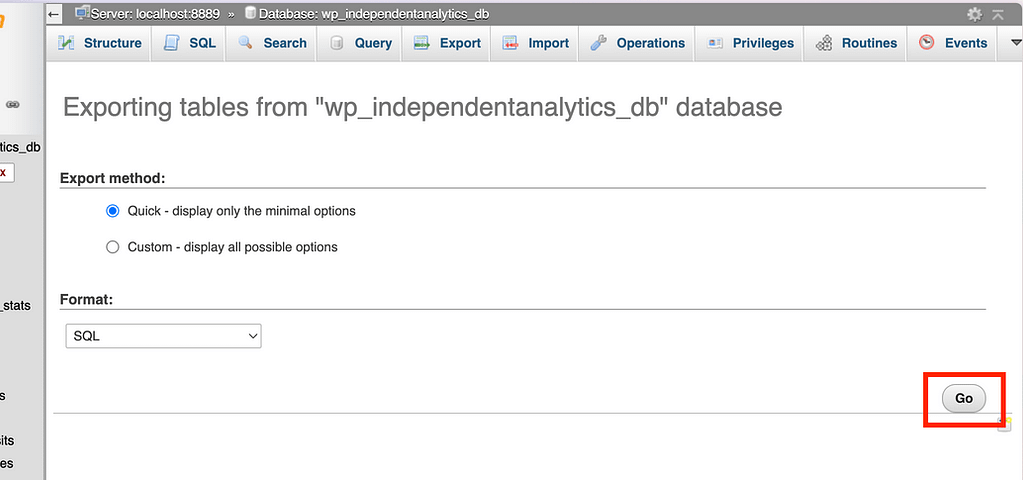
An SQL file containing the selected tables will begin downloading right away.
How to import your analytics data
To import the data, you will have to delete all of the analytics tables in the database first. You will get an error message saying the tables exist already if you try to import them without deleting the existing tables first.
Next, visit the Import menu, click the Choose file button, select the SQL file you downloaded, and click the Go button to import the tables.
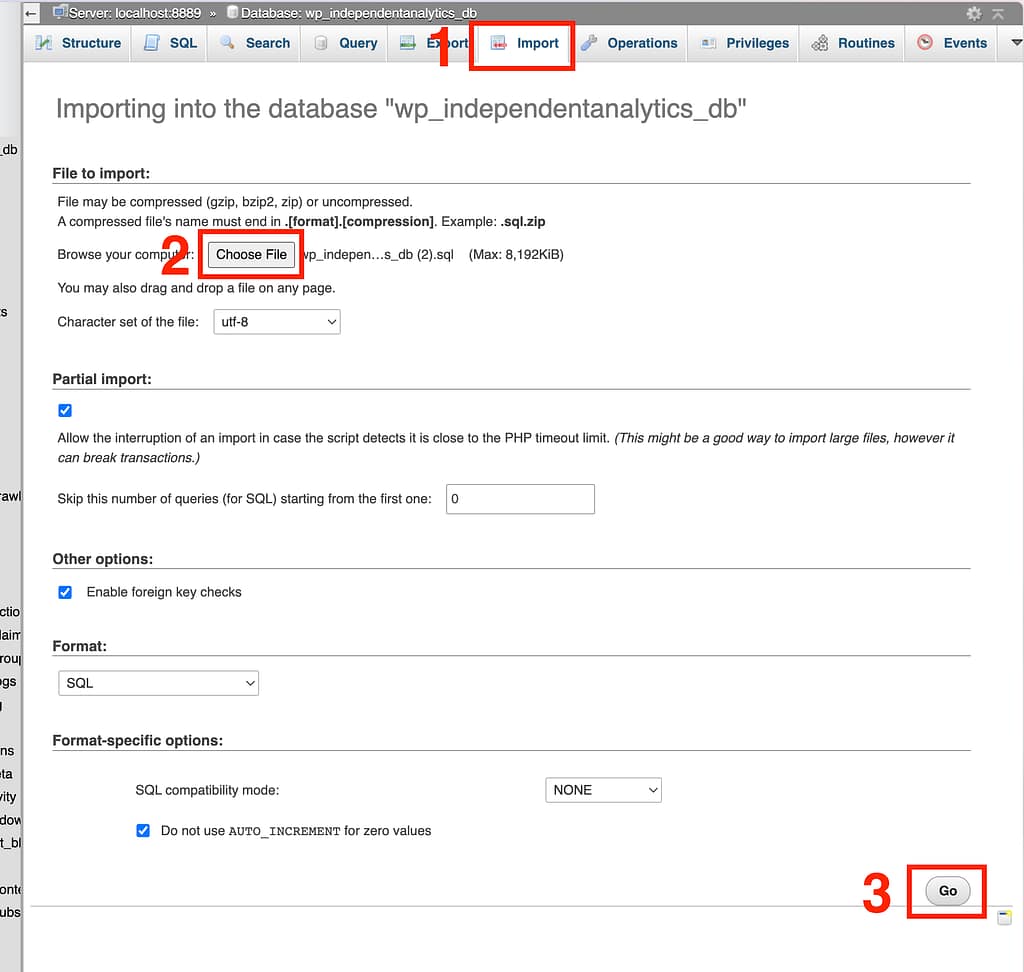
If your SQL file is large, it may help to compress the file before uploading. You can zip an SQL file like any other file type to compress it.
Remember, you want to export from the production site and import into the staging site. There, you can ensure it worked well before you push the entire staging site to production.
Downsides of using phpMyAdmin
phpMyAdmin is not that reliable when it comes to exporting and importing data. For small sites, it should work fine, but for sites with larger exports, it can be slow and sometimes fail midway.
Additionally, when you delete the analytics tables, this will cause Independent Analytics to crash until the new tables are imported. This is not a big deal because no one is visiting the staging site, but it’s good to know about this so that you are not concerned if you see PHP errors about missing tables during the manual import process.
For these reasons, it is preferable to use a plugin to migrate the analytics tables for you, which can be faster and more reliable.
Summary
Independent Analytics adds tables to your WordPress database that are already included in any backups or migrations you perform.
This can be an issue when transferring your database from your staging site to your production site because it can cause your analytics data to get overwritten. When migrating in this way, make sure to update Independent Analytics to the same version on both sites. Then, you can push your staging site to production, excluding the analytics tables. Or, push only the analytics tables from production to staging, so that you can transfer the entire staging site to production.
We hope this answers all of your migration-related questions, but please feel free to get in touch if there is anything else you need to know.
Please post a new thread in our support forum, and we will be happy to help you.
