
This feature is only available in the Pro version of Independent Analytics.
If you purchased a license key for 1-3 sites, then you may exceed your activation limit by accident when activating Independent Analytics Pro on staging and development sites.
This guide will help you mitigate this issue, so you can keep your license key activated on your live websites.
Activate your license on your live sites first
Things are easiest when you activate your license key on your live sites first. For instance, if you purchase a license for 3 domains, then activate it on all three of your live sites before you worry about any of the staging or development environments.
Use recognized subdomains and TLDs when possible
Our licensing system recognizes a wide variety of subdomains and TLDs as staging/development environments. If the license is activated on a WP install using one of the recognized patterns, it won’t be counted towards your total activations.
For example, let’s say you’ve purchased IA Pro for 1 website and activated it on example.com. You could also activate it on staging.example.com, and this wouldn’t exceed your 1 website limit.
You can review the full list of recognized patterns here:
Subdomains and TLDs that Don’t Count Towards License Activations
Mark staging sites as duplicates
If you push your live site to a staging site, you’ll see this notice at the top of the admin dashboard when you login to the staging site:
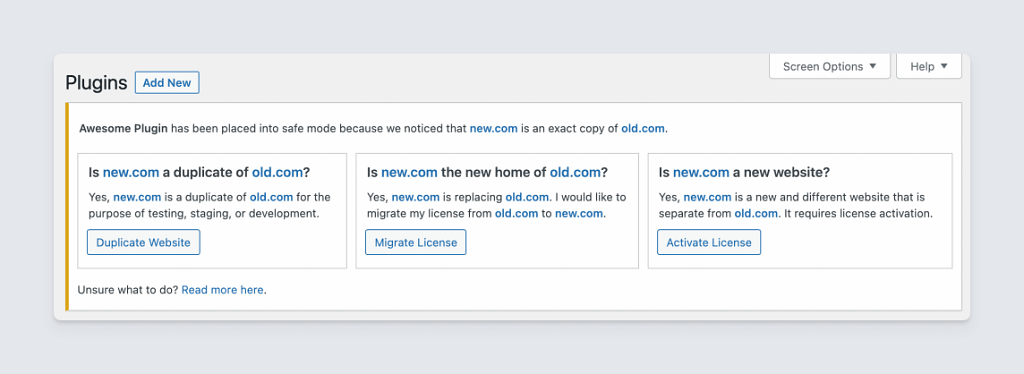
You can click the Duplicate Website button to identify this site as a duplicate version of the live website. If you click this button or ignore the notice and don’t click any of the buttons, the Pro version will stay activated for two weeks without counting towards your license activation limit.
After that two-week period, you’ll see a similar set of options, but the first button will now say Long-term Duplicate.
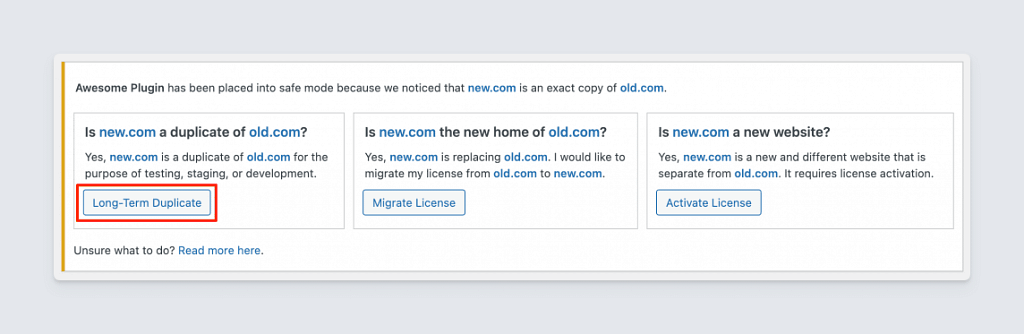
If you mark this site as a long-term duplicate, it will activate the license key, counting towards your total activation limit. If you ignore it, Independent Analytics Pro will revert to the free feature set only, and won’t count as a license activation.
If this is a temporary staging site and you don’t want to use a license activation, you can simply ignore the admin notice.
If you have an unlimited site license, you should choose the long-term duplicate option.
Removing sites you can no longer access
There are times when you have a license activation on a site you can no longer access. For instance, imagine you create a staging site, activate the license there, and then delete the staging site. Now, you’re left with a non-existent website taking up one of your activations.
You can resolve this by logging into your account and navigating to the Websites menu. From there, select the site that no longer exists and click the Deactivate button in the License section.
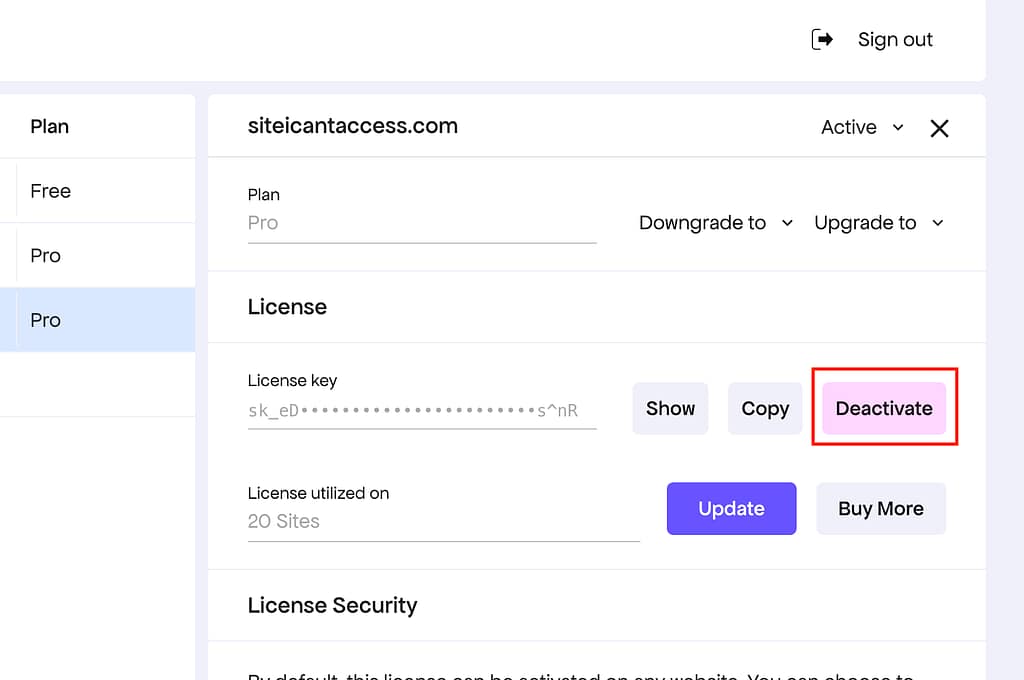
That will immediately free up the activation that the site was previously using.
These tips should make license management easier, but if you still have any issues with your account, please reach out to us via our contact form, and we’ll be happy to help.
For help with Pro features or pre-sale questions, please reach out via our contact page.
