


You can track WooCommerce revenue by landing page using a WordPress analytics plugin. For instance, the Independent Analytics Pro plugin can show you the orders and revenue of every landing page, thanks to its WooCommerce integration.
This way, you can evaluate your landing pages not just by the number of visitors they bring to your site, but also by the number of orders and total revenue they generate.
Even better, you don’t have to deal with the complexity of configuring and reading eCommerce sales data in Google Analytics. You can track your WooCommerce sales without using Google Analytics at all.
Which landing pages generate the most orders?
To see which landing pages generate the most orders, you can sort your pages by the number of orders they’re responsible for. In Independent Analytics Pro, you can display the Orders column in the Pages report, and then click on this metric to sort.
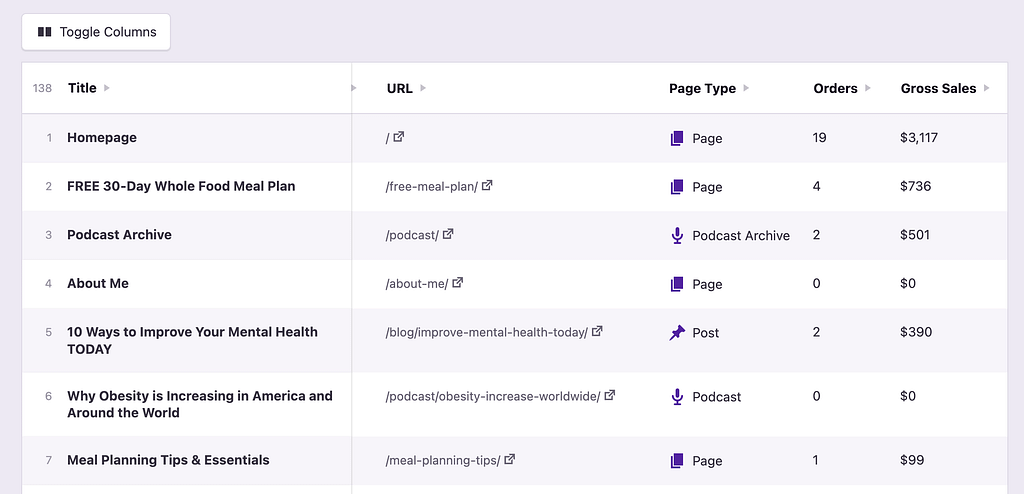
Only the landing page gets credit for the sale, so if you see a page with five orders, that means it was the landing page for all five of those orders.
The ranking of these pages often surprises store owners who assumed their product pages were doing the heavy lifting. You may find blog posts and even documentation pages that are driving significant sales volume.
How can I see the average order value per page?
With Independent Analytics Pro, it’s as easy as enabling the Average Order Volume column in the Pages report. Then you can sort this metric from highest to lowest.

This tells you not just how many orders came from a page, but how much those orders were worth on average.
A landing page with fewer orders but a higher average order value can be more profitable than a page with more orders at a lower cart size. Comparing these two columns side by side is one of the fastest ways to identify which pages attract your best buyers.
How do I find landing pages with the best conversion rate?
To find landing pages with the best conversion rate, enable the Conversion Rate column in the Pages report and then sort by it.

A high-traffic page with a low conversion rate is a clear optimization target. A low-traffic page with a high conversion rate is worth promoting more aggressively.
Sorting by conversion rate rather than total revenue gives you a different lens on performance and often reveals underrated pages that are punching above their weight.
How can I find the traffic sources of my top landing pages?
You can uncover the traffic sources for each landing page using the Solo Report feature. Hover over any page in the table and then click the magnifying glass icon.

This reveals a dedicated report for that page, including a table with all its referrers.

This shows you how much traffic the page received from each traffic source. It’s important to note that these aren’t all landing page visits. In other words, if you see 100 visitors from Google, that is also going to count people who reached your site from Google, landed on another page, and then visited this page.
Another way to find where your WooCommerce sales come from is to open the User Journeys report.
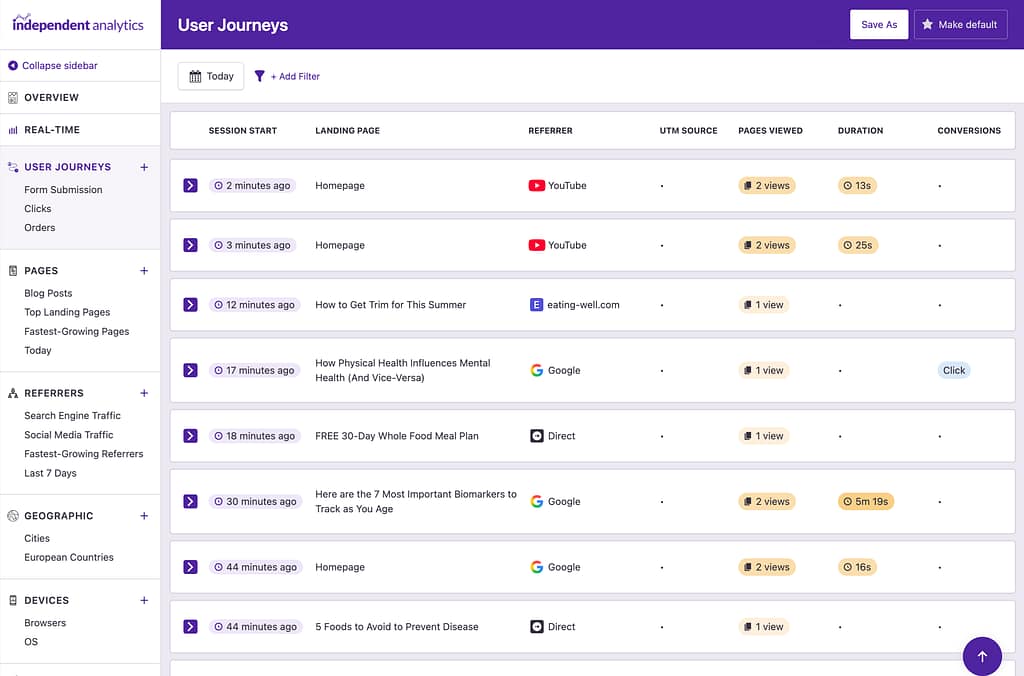
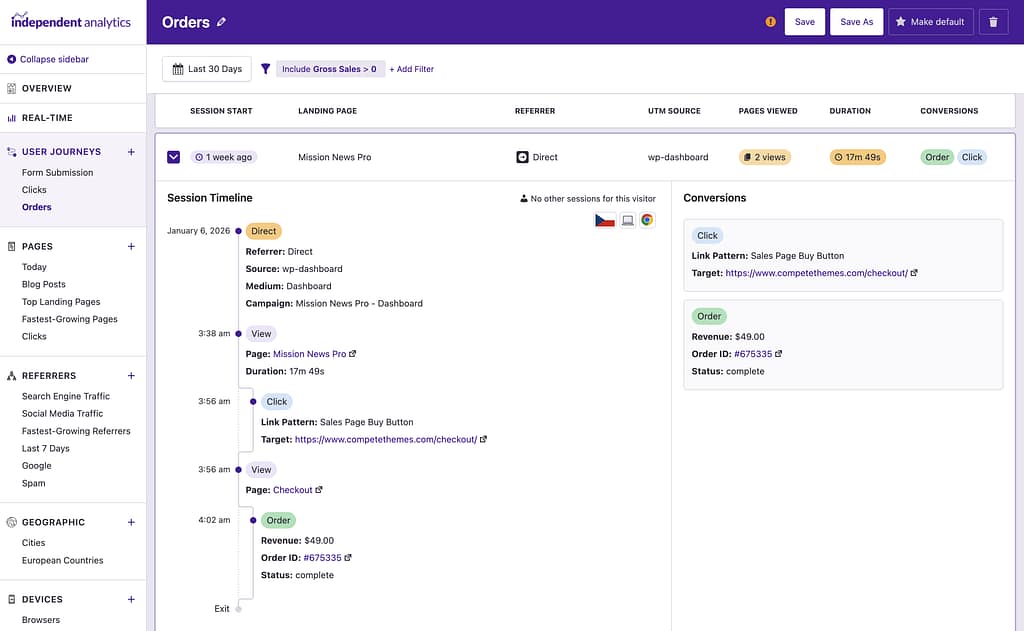
You can filter the sessions by landing page and by those that have an order. This will show you every session where someone reached your site via that page and purchased something.

You can learn a ton by viewing the timeline of someone’s full activity on your website, leading up to and after a purchase.
How to Set Up Landing Page Revenue Tracking in WooCommerce
The easiest way to get this data is to install a WordPress analytics plugin that integrates directly with WooCommerce.
Independent Analytics Pro integrates with WooCommerce, so all your sales are automatically tracked with no configuration on your part. You don’t need to create goals and custom events, add JavaScript snippets to your site, or jump through any of the other hoops required by Google Analytics.
Learn more about WooCommerce analytics in Independent Analytics Pro.
